
Your first backup
Open ResticGUI and choose Add a repository, or New repository at the top. A repository is where restic keeps the backups: one per destination, such as a disk or a bucket. It can hold the backups of several folders.
1. Storage
Give the repository a name, pick the storage and enter its location. A local repository is a folder, here /srv/restic/photos; the other storages are described in storage.
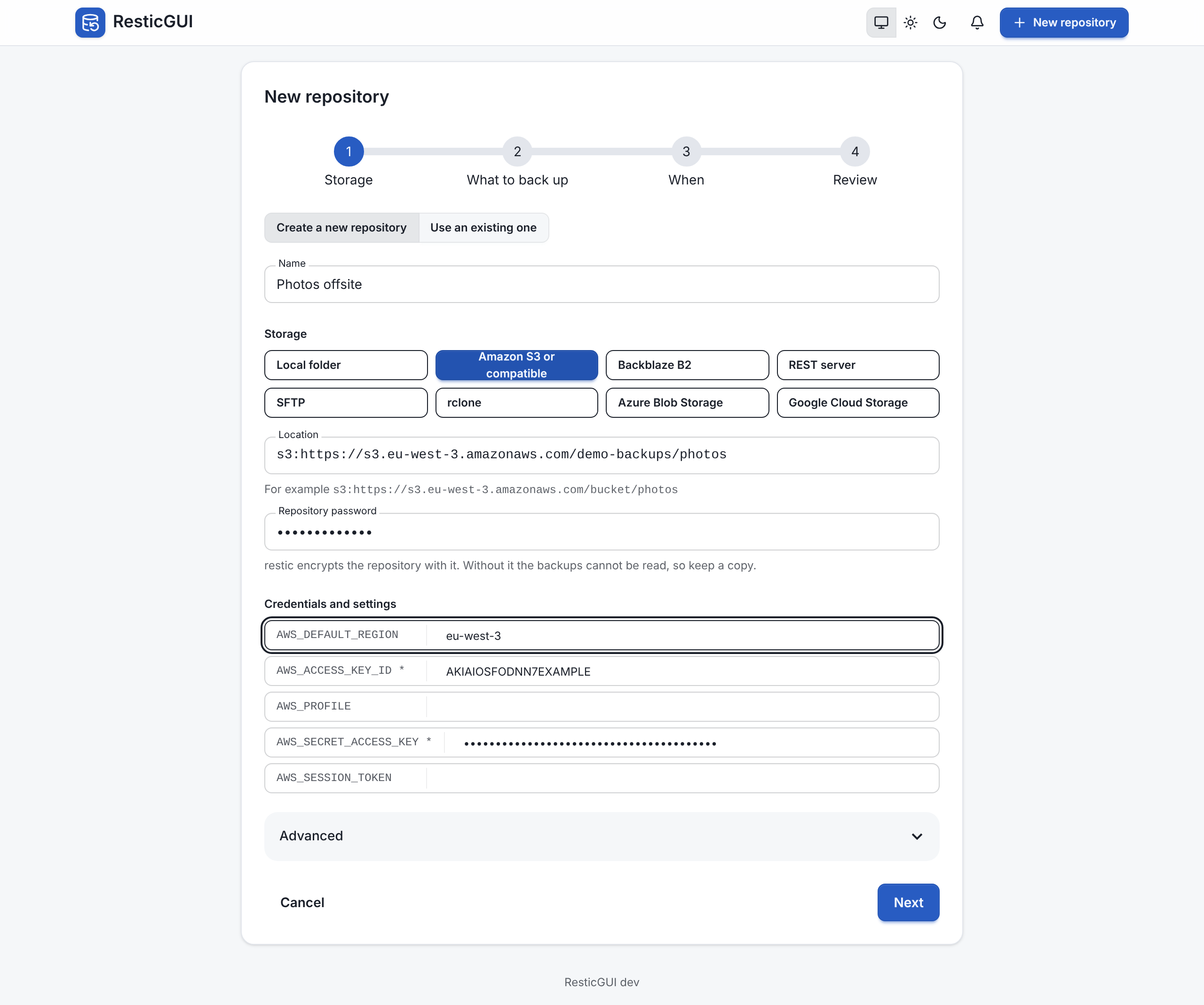
Choose a password for the repository. restic encrypts everything with it. ResticGUI saves it, encrypted, so that schedules can run; keep a copy elsewhere too, as nothing can open the backups without it.
Create a new repository runs restic init at the end. To add a repository you already have, choose Use an existing one: see existing repositories.
2. What to back up
Pick folders with the browser, or type their paths, and add exclude patterns such as *.tmp or /home/*/.cache. The folders you can pick are the ones the configuration allows (paths.roots).
3. When
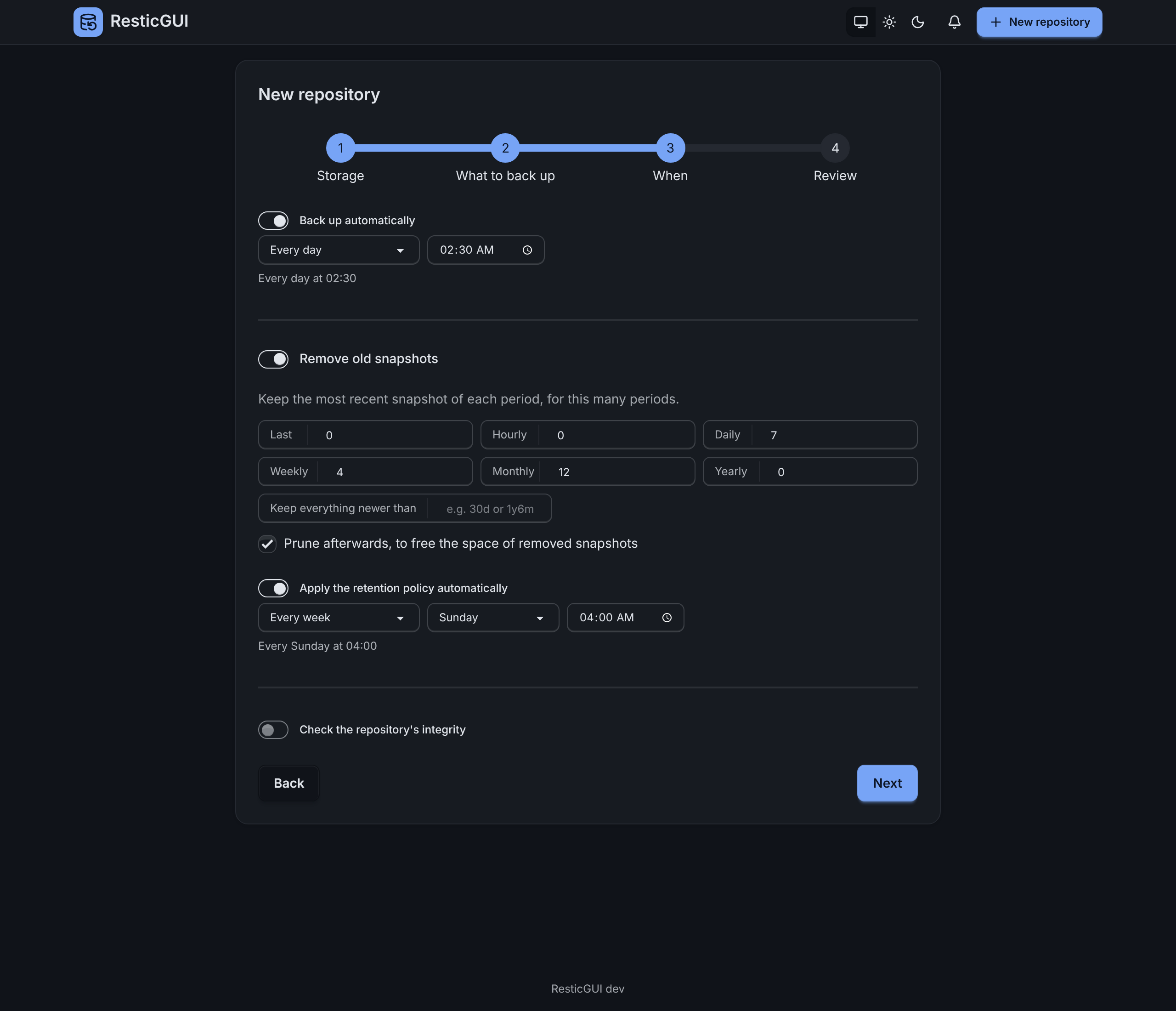
Back up every day at 02:30, every hour, on some days of the week, or with any cron expression. Turn on Remove old snapshots to keep, for example, the last 7 daily, 4 weekly and 12 monthly snapshots, and choose when the cleanup runs. A monthly integrity check is a good habit.
4. Review
Check the summary and choose Create repository. ResticGUI creates the repository and opens its page. Choose Back up now to run the first backup without waiting for the schedule; the progress shows live.
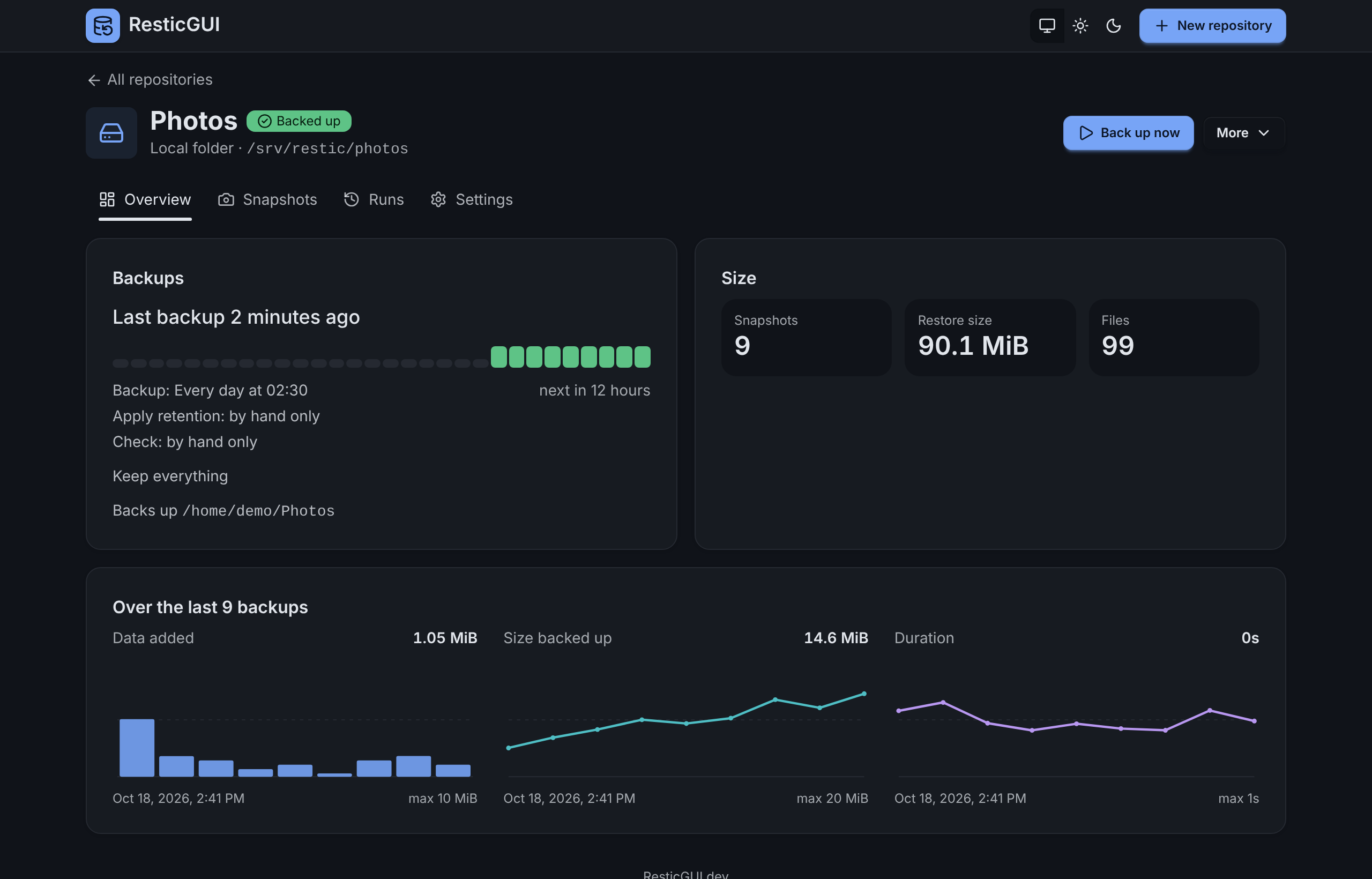
The Runs tab keeps the history of every backup, cleanup and check, with its log. The dashboard shows each repository's last backup at a glance, and turns red when one needs attention.
Next: get told when a backup fails.