
Browse and restore
The Snapshots tab lists the snapshots of the repository, newest first, with the data each backup added. Turn on Also snapshots made outside ResticGUI to list the ones made by restic on the command line or another tool.
Browse
Browse opens a snapshot as a file browser, with each file's size and date. Click a folder to open it, or use the keyboard:
| Key | Does |
|---|---|
| ↑ ↓, Home End | Move the selection |
| Enter or → | Open the folder |
| Backspace or ← | Go up |
| / | Find files by name |
| d | Download the selection |
| r | Restore the selection |
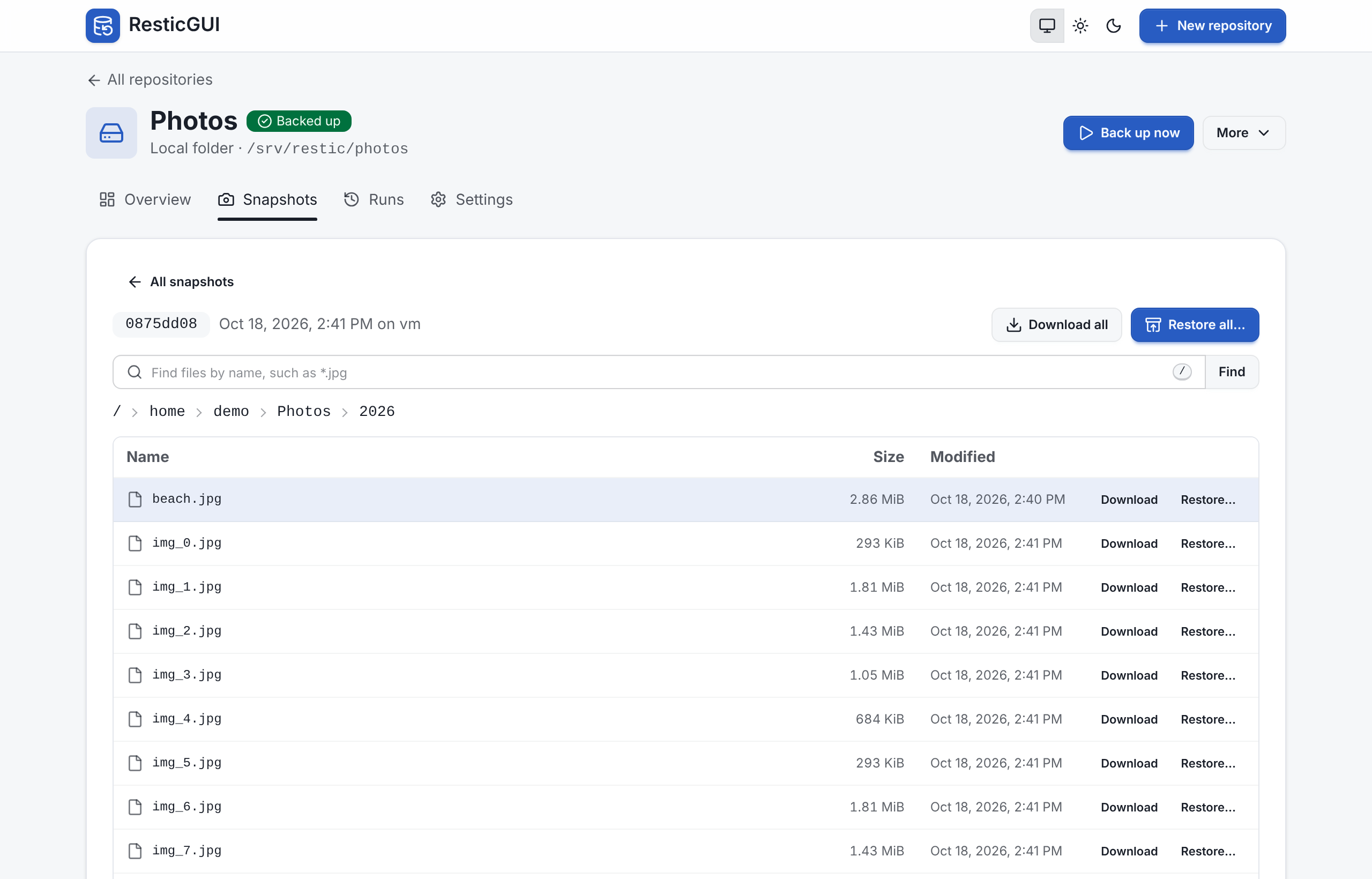
Find searches the whole snapshot with restic find, with patterns such as *.pdf or report-2025*.
Download
Download sends a file as it is, or a folder as a zip archive, straight from the repository: nothing is written on the server. Download all does the same for the whole snapshot.
Restore
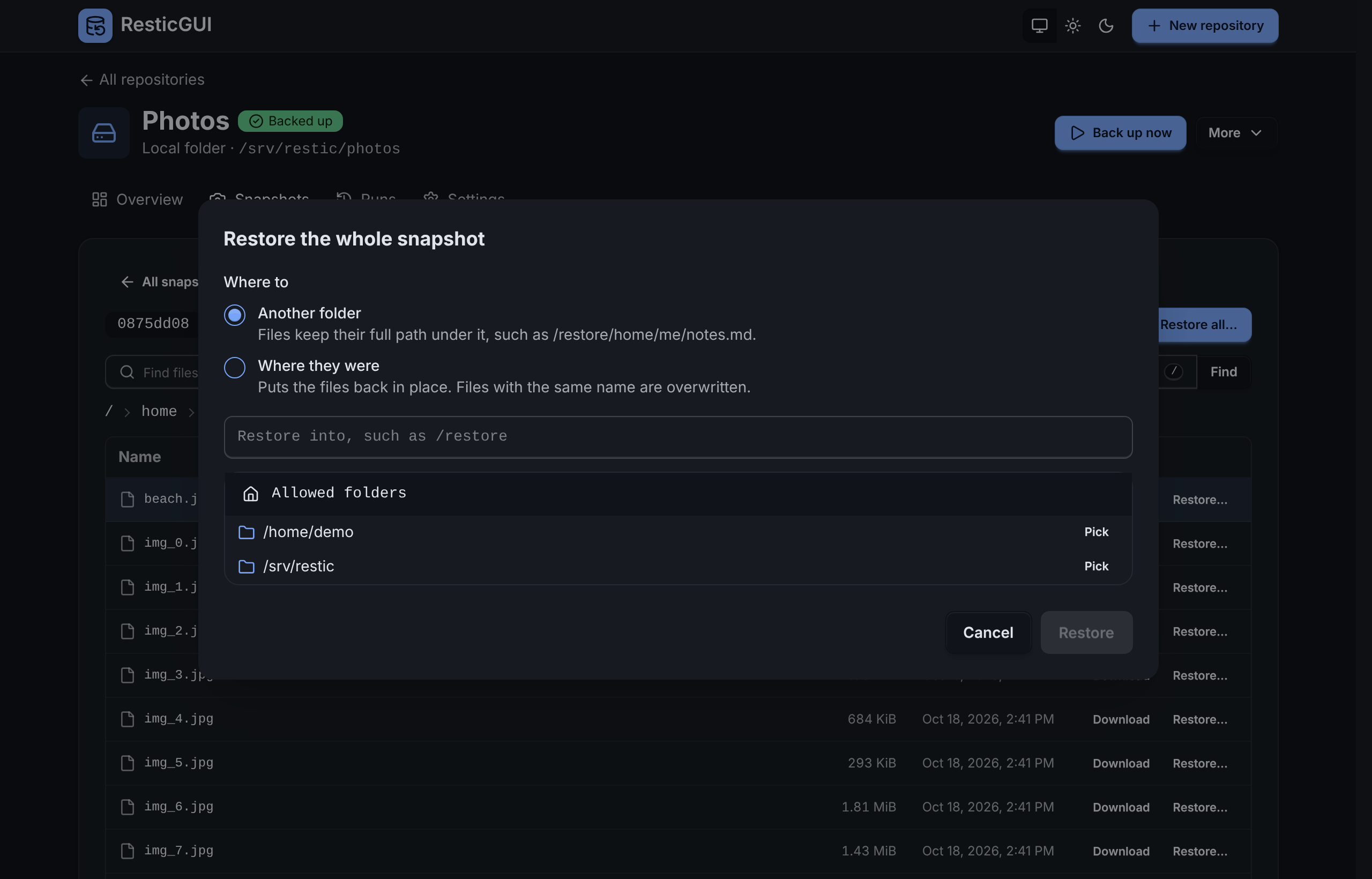
Restore… on a file or a folder, or Restore all…, opens the restore dialog:
- Another folder writes them under that folder with their full path, such as
/restore/home/me/notes.md; nothing in place is touched. - Where they were puts the files back in place; files with the same name are overwritten.
The target has to be under paths.roots. The dialog follows the restore live and tells how many files were restored; you can close it, and the restore keeps going under Runs.
Forget a snapshot
Forget removes one snapshot from the repository, with an option to prune at once. It cannot be undone.